DrawInk

Three steps to a finished drawing
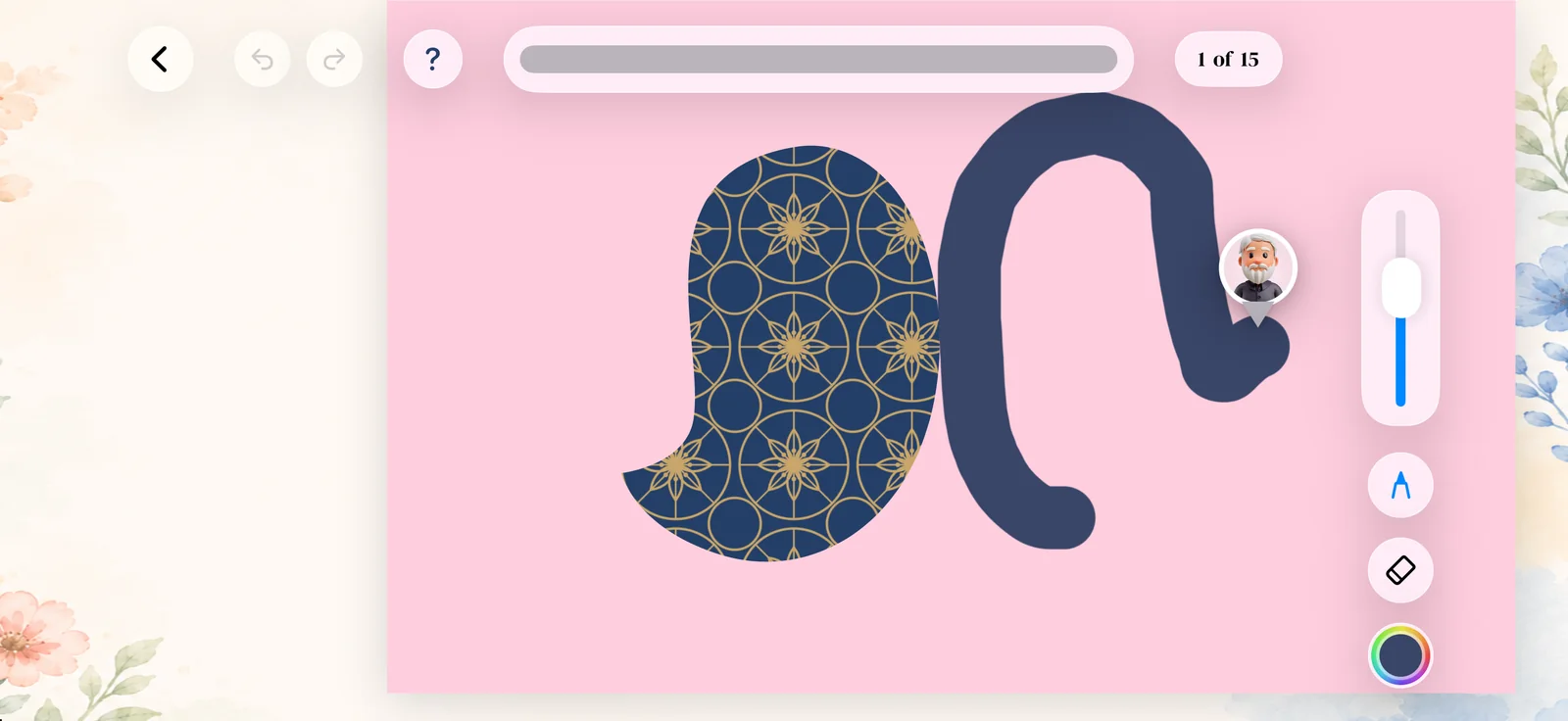
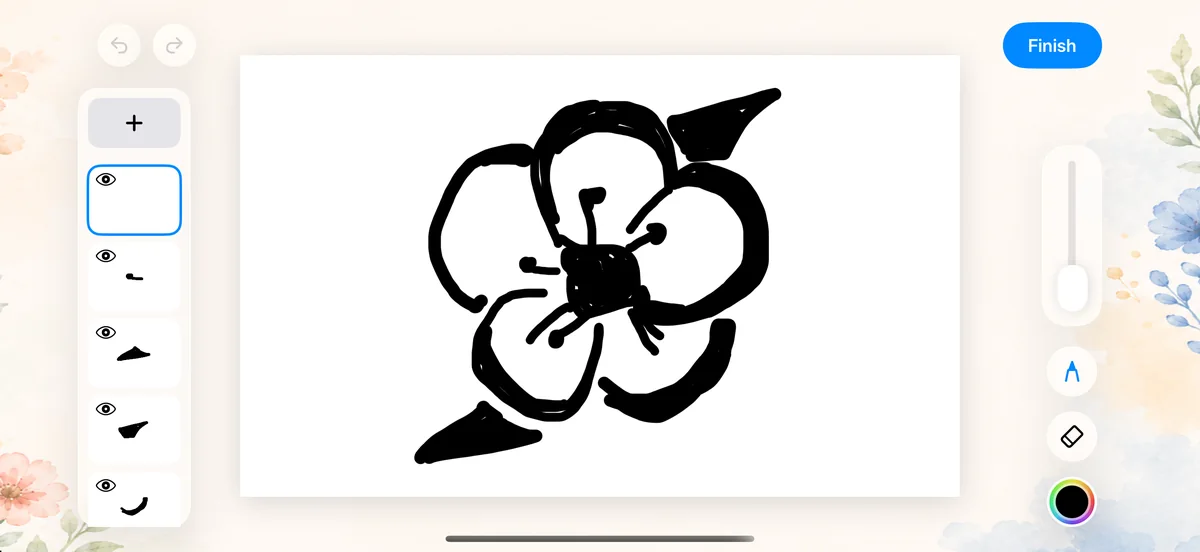
Choose from 200 templates, from anime heroes and cute pets to food and musical instruments. Each one is built from layers, so you only ever draw one shape at a time.
Draw together, even from far away
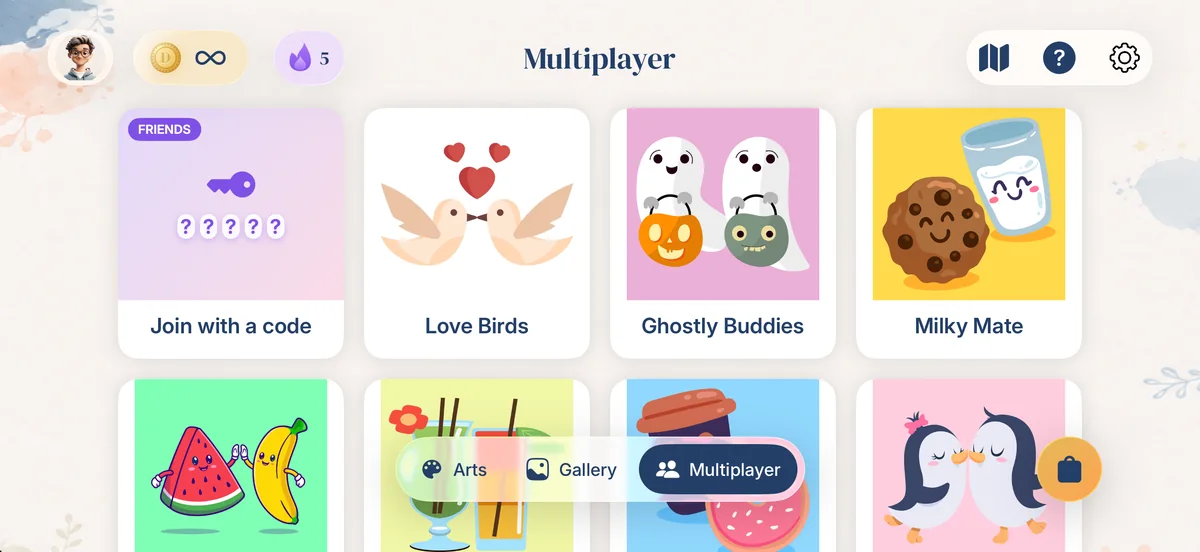
Every multiplayer picture is drawn side by side, live, so you can see each stroke as it happens.
-
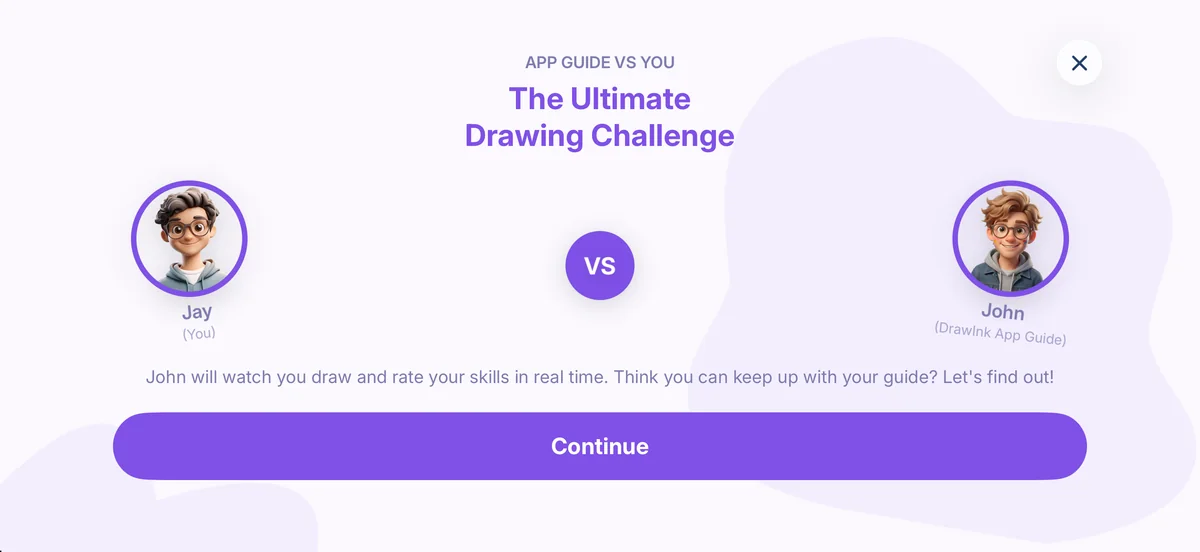
Play with John
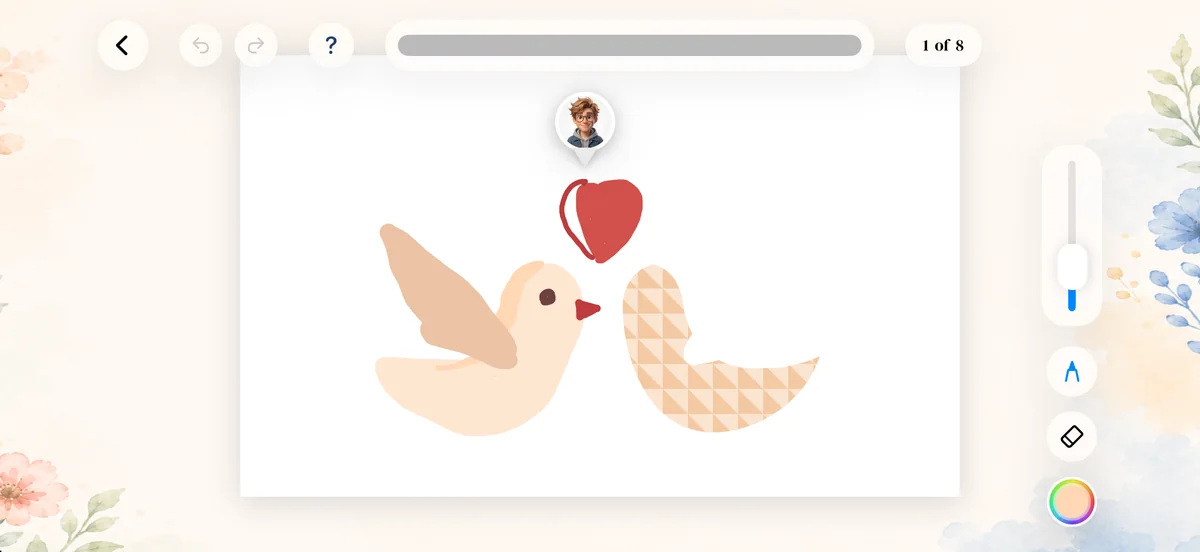
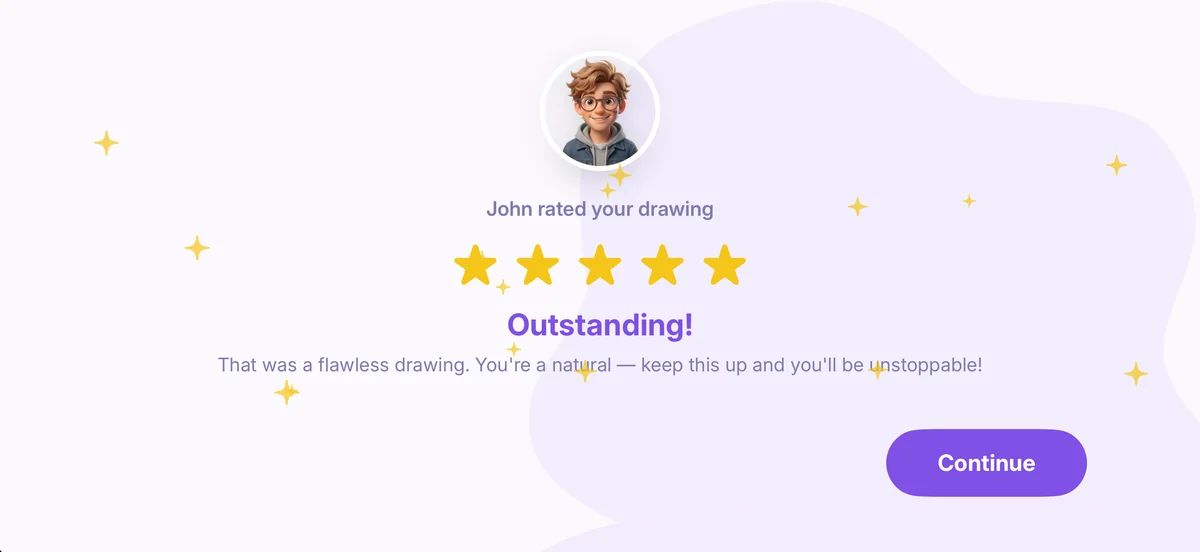
You and John draw the same picture side by side. He watches your strokes in real time and rates how you did.
-
Quick play
Get matched with a random player and draw side by side to see who finishes first.
-
Play with friends2 players
Create a room, then share the room code or an invite link. Your friend joins in one tap, and you both draw the same picture in real time.
Keep drawing every day
-
Daily streak
Draw a little every day to keep your flame alive.
-
Challenges and coins
Complete tasks to earn coins as you draw.
-
Shop
Spend coins on brushes, drawing boards and layer fills.
-
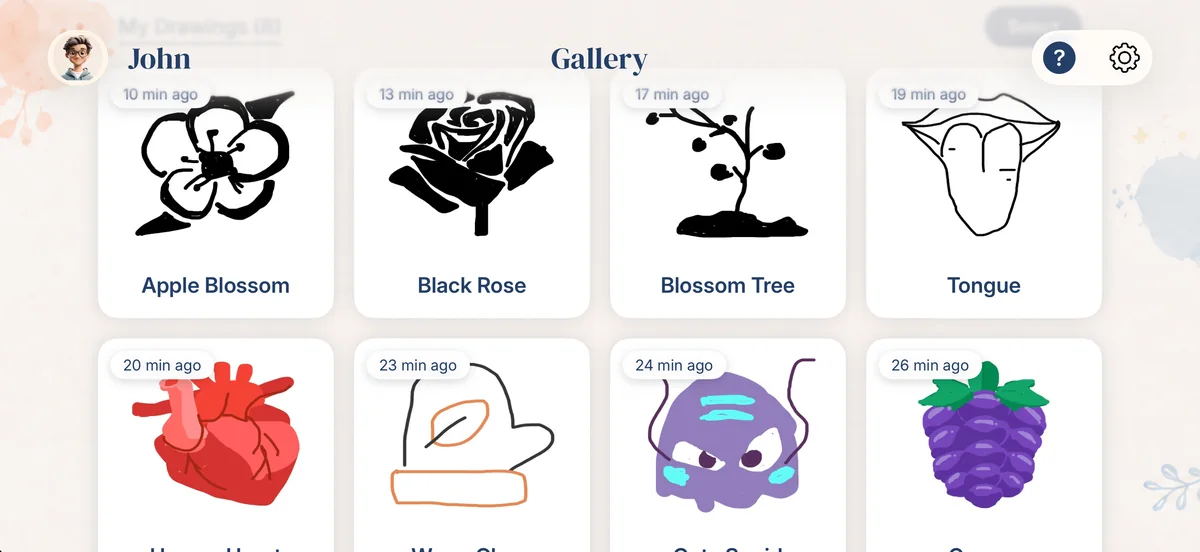
Your gallery
Every drawing saves by itself, and you can share a timelapse of how you made it.
Questions, answered
Still stuck? Email us at drawink06@gmail.com. We read every message and usually reply within a couple of days.
How do I save a drawing?
Every drawing saves automatically to your Gallery as you go, and again when you tap Finish.
What is the App Guide?
The App Guide is a short, friendly walkthrough led by John, your drawing guide. It shows how line and fill layers work before your first real drawing.
Who is John, and what is Play with John?
John is your drawing companion. In Play with John, you both draw the same picture side by side. You sketch along with John's lines, then see how you did.
How does John rate my drawing?
John gives your drawing 1 to 5 stars based on how closely your strokes match the guide, along with some encouragement.
Can I change my name or avatar later?
Yes. Tap your avatar or name at the top of the Arts screen at any time to update either one.
What is the difference between Sketches, Monochrome and Casual?
Sketches are line-tracing only, Monochrome uses black-and-white fills, and Casual mixes filling and line drawing in one piece.
Can I draw freely, without a guide?
Yes. Open the Gallery tab and choose Blank Canvas to start from nothing, or choose Photo to Sketch to turn your own photo into a template.
How do I delete a drawing?
In the Gallery tab, tap Select, pick the drawings, then tap Delete. This can't be undone, so double-check before you confirm.
How do I turn off sounds or haptics?
Open Settings from your profile and switch off Haptics or Sound. Your choice is saved right away and applies everywhere in the app.
Something isn't working. What should I do?
Try closing and reopening DrawInk first, which solves most hiccups. If the problem continues, email drawink06@gmail.com with your device model and what you were doing.